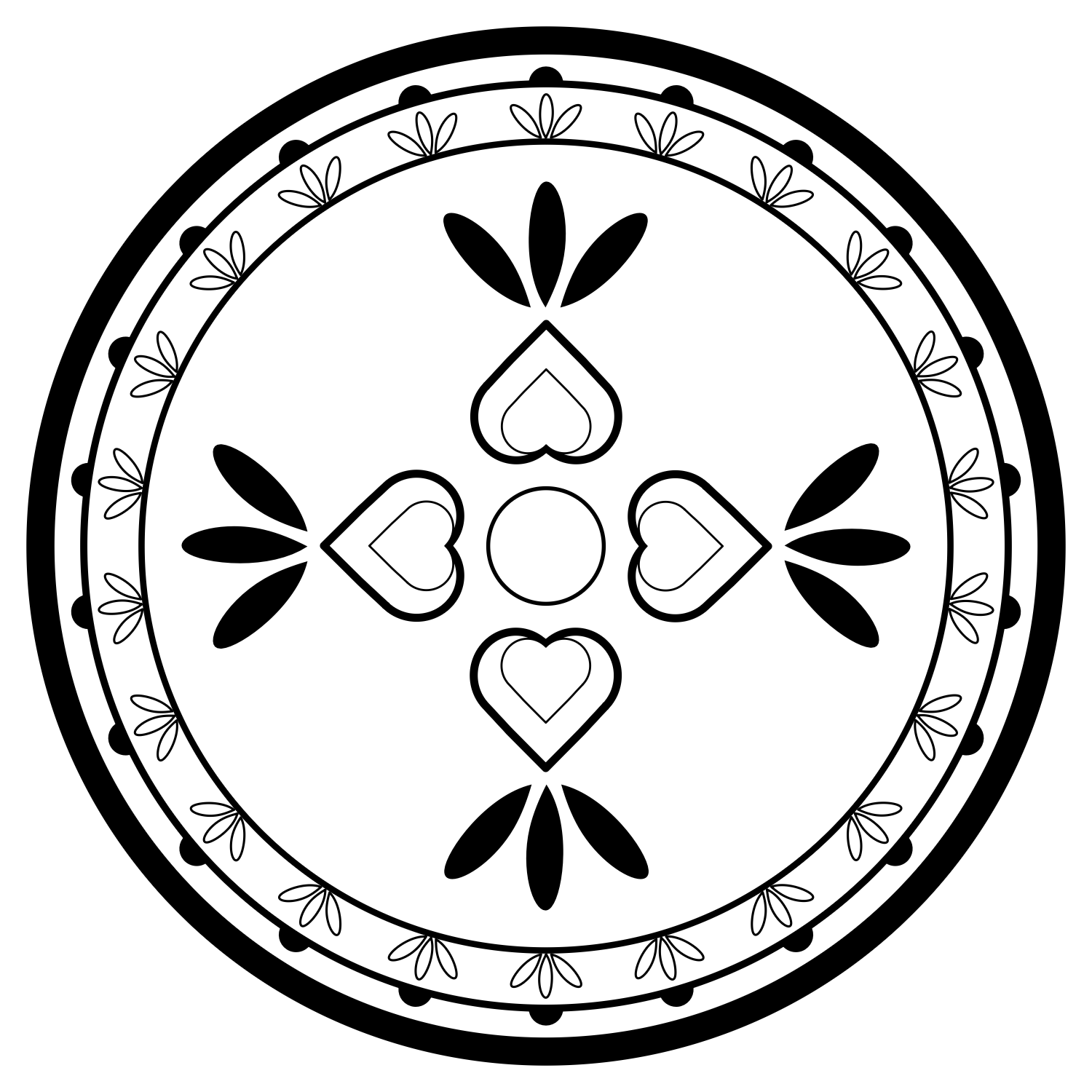
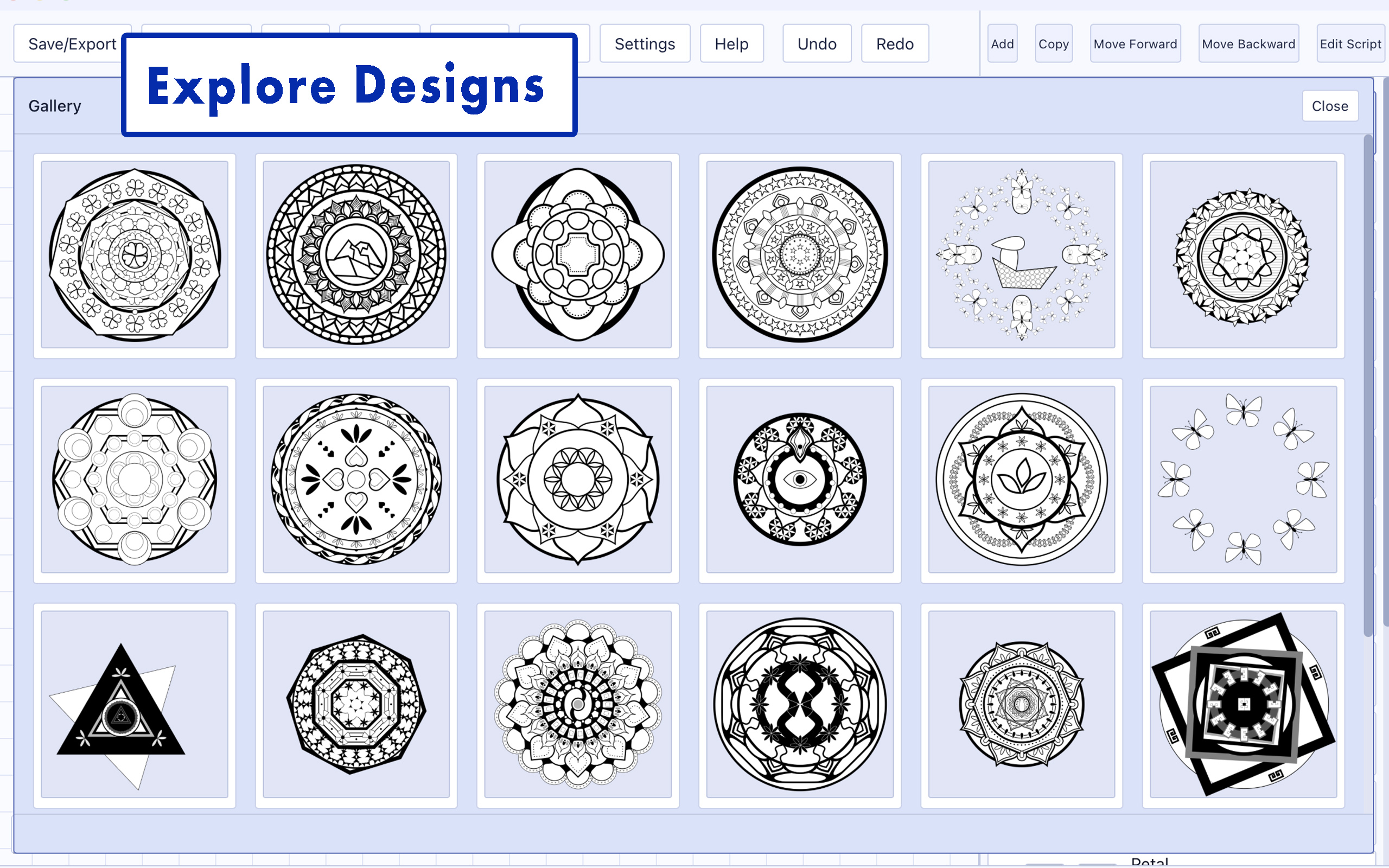
44 starter designs
Open the built-in gallery and load any design to see how its layers and settings fit together — a real, working project you can study or build on.
A closer look at how the app is put together — from the first shape you place to the file you export.
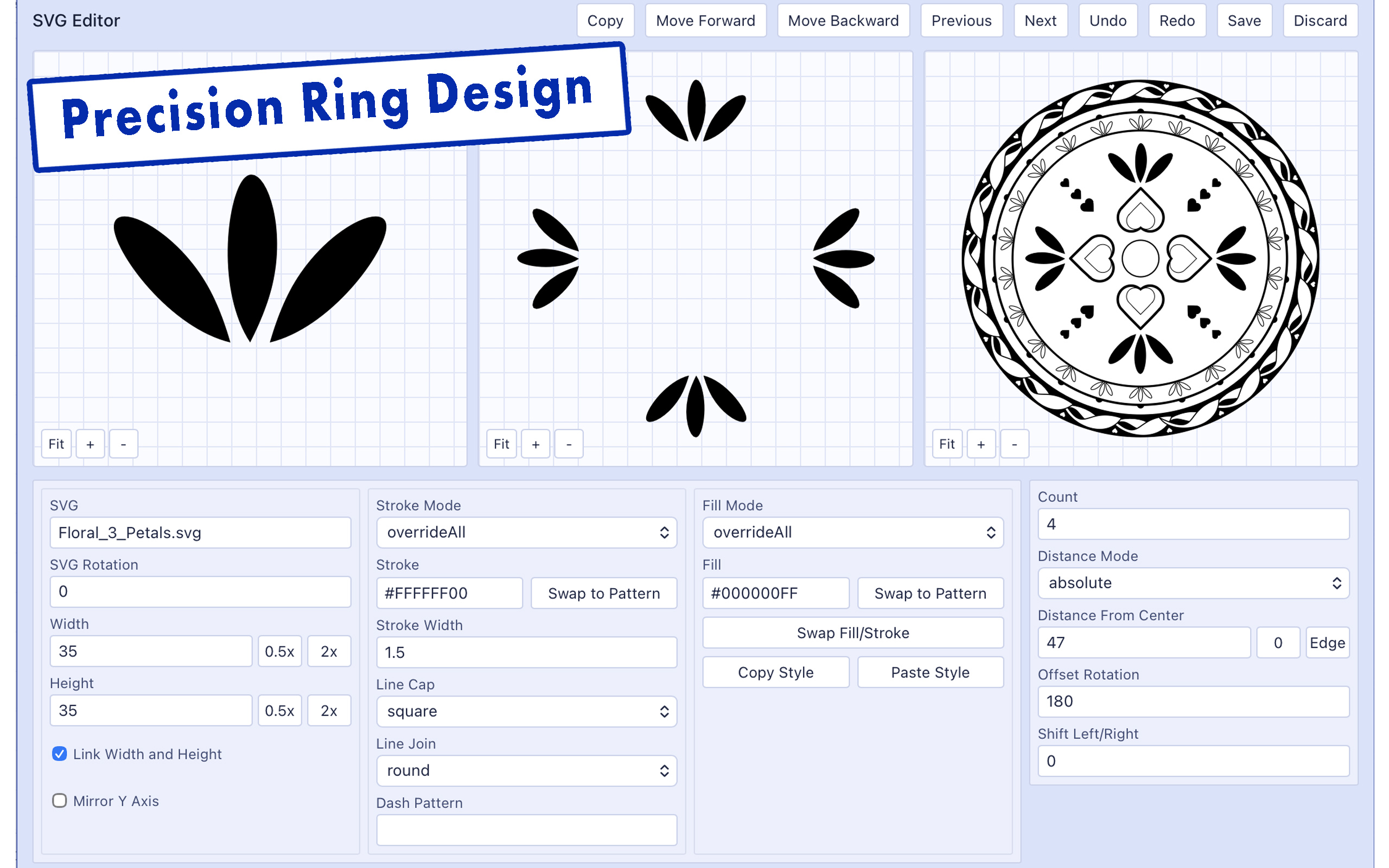
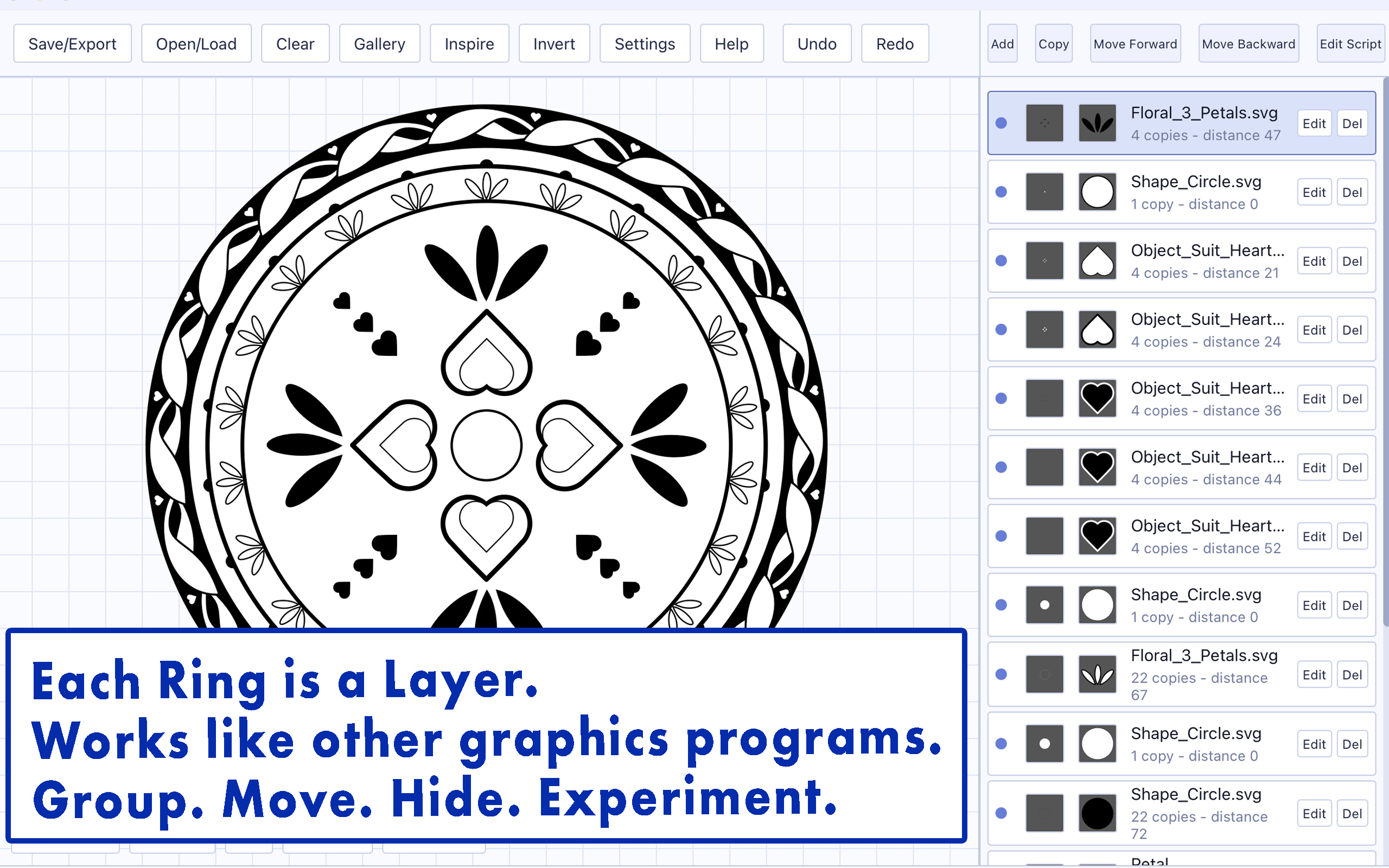
Every mandala is built from layers, the same way you'd work in a graphics program like Photoshop or Procreate. Each layer can repeat itself as a ring of evenly-spaced copies around the center.
Set exactly how many copies sit in a ring and how far they sit from the center. Distance can be locked to an exact number, or set relative to the ring inside it, so your design stays in proportion even as you change earlier layers. A rotation dial with quick-select angles makes it easy to line up or interleave rings.
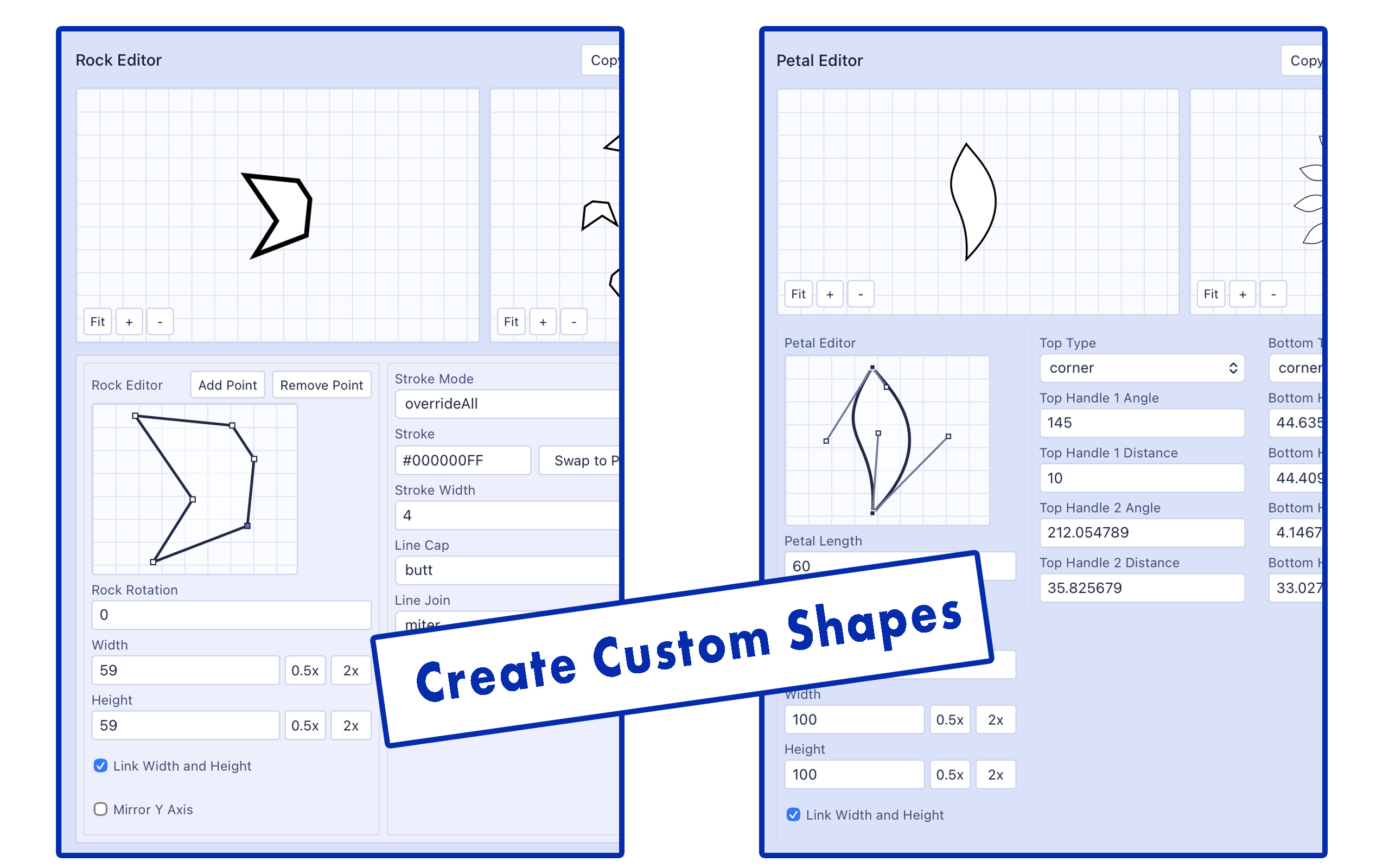
Choose from a library of ready-made shapes, or draw your own from scratch.
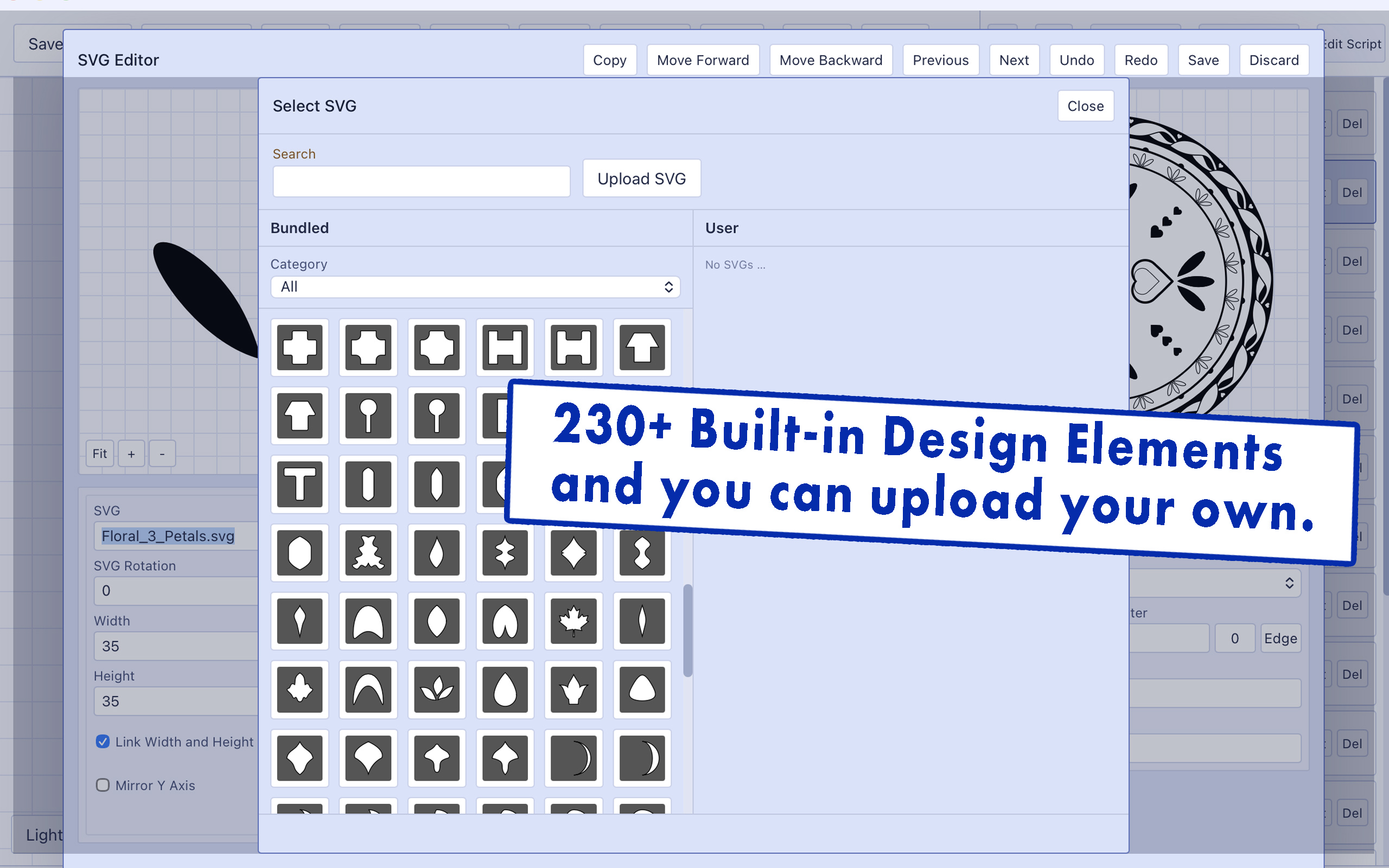
SVG shapes — over 230 bundled design elements across categories like Floral, Flourish, Geometric, Star, Leaf, Moon, and more. Import your own local SVG files to use alongside them.
Petals — a curved, leaf-like shape you sculpt yourself using a Bézier curve editor. Drag the handles until you get the exact form you want.
Rocks — a hand-built polygon. Click to add or remove points and drag them into place for organic, angular shapes.
Every shape has independent stroke and fill controls.
Pick colors with the built-in color picker, type a hex code directly, or reuse a color from your favorites or recent history. Color Schemes suggest harmonious colors from the same wheel, using the Munsell, Newton, or RGB models.
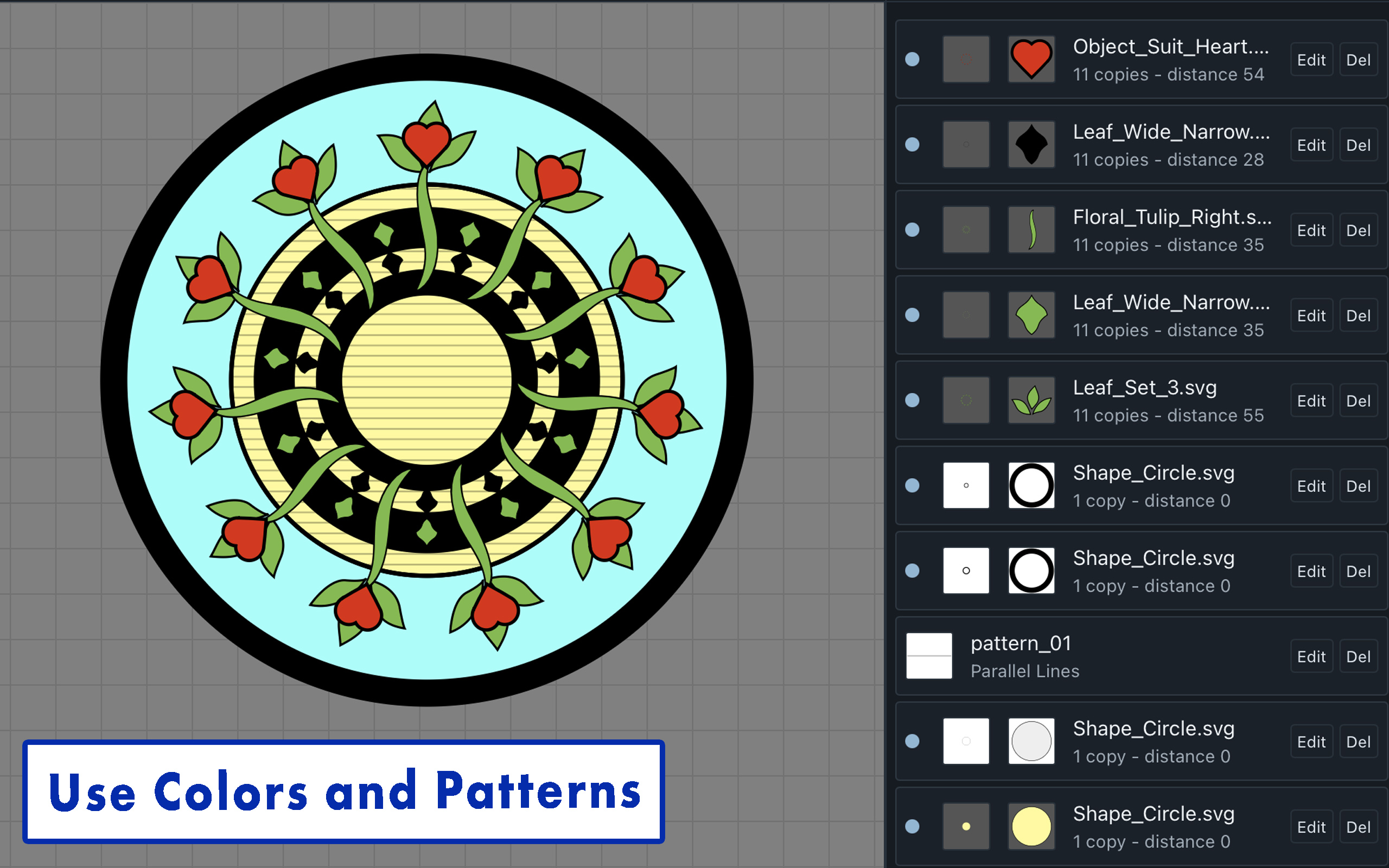
Instead of a flat color, paint a shape with a repeating pattern tile — parallel lines, circles, a grid, or your own custom SVG. Patterns can be rotated, stretched, and mirrored independently on each layer that uses them.
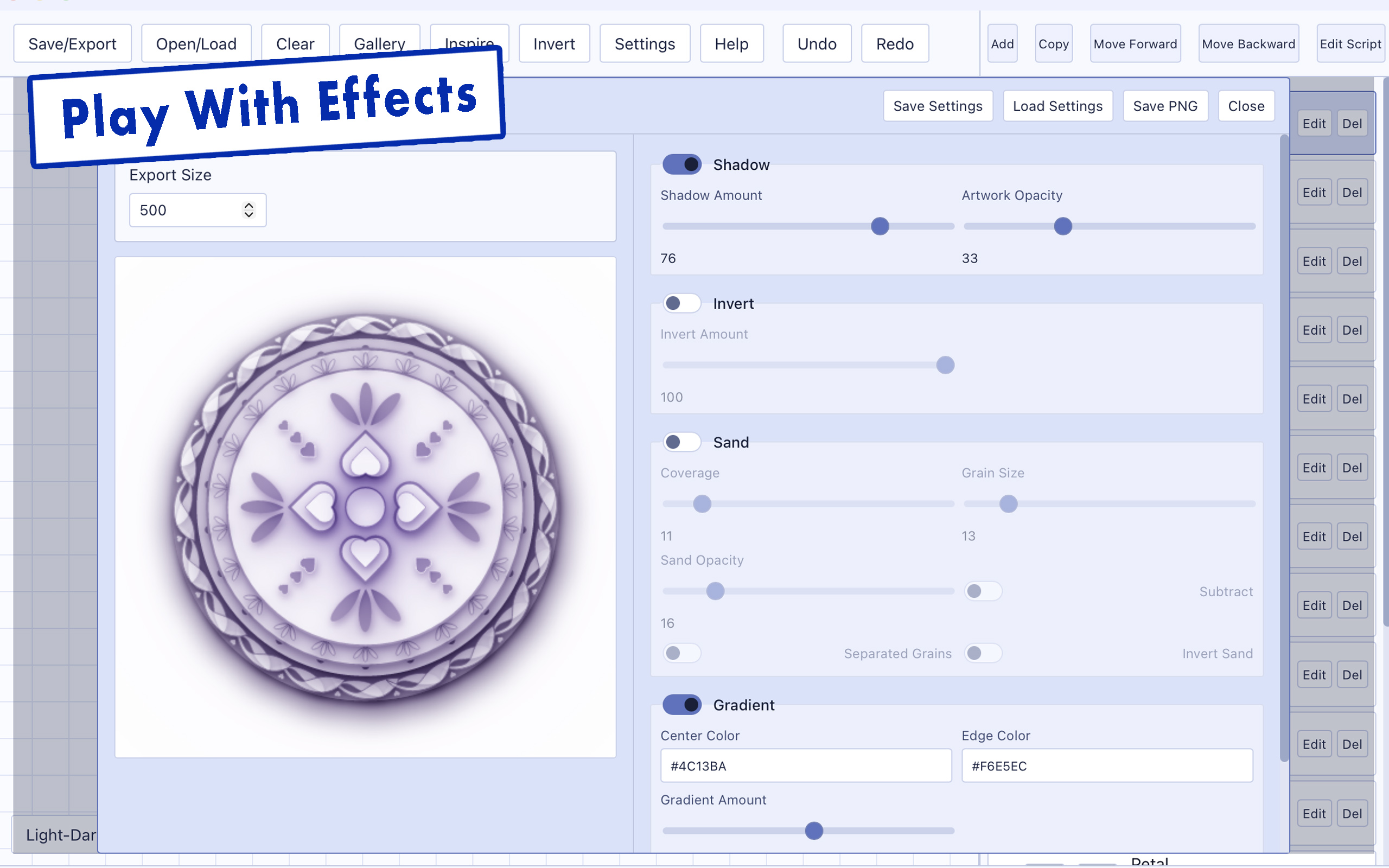
Before you export a PNG, the Stylized PNG panel lets you play with how the final image feels.
Add a soft drop shadow, invert the artwork's tones, scatter a grainy sand texture across it (a nod to the texture of a sand mandala), or wash the piece in a gradient from a center color to an edge color. Every effect previews live before you save.
Bundled shapes are organized into categories, so you can browse by feeling rather than search by name.
Search by name, browse by category, and keep a personal library of imported local SVGs alongside the bundled ones. If you share a project and it uses your own SVG, keep the filename the same so it still shows up correctly for whoever opens it.
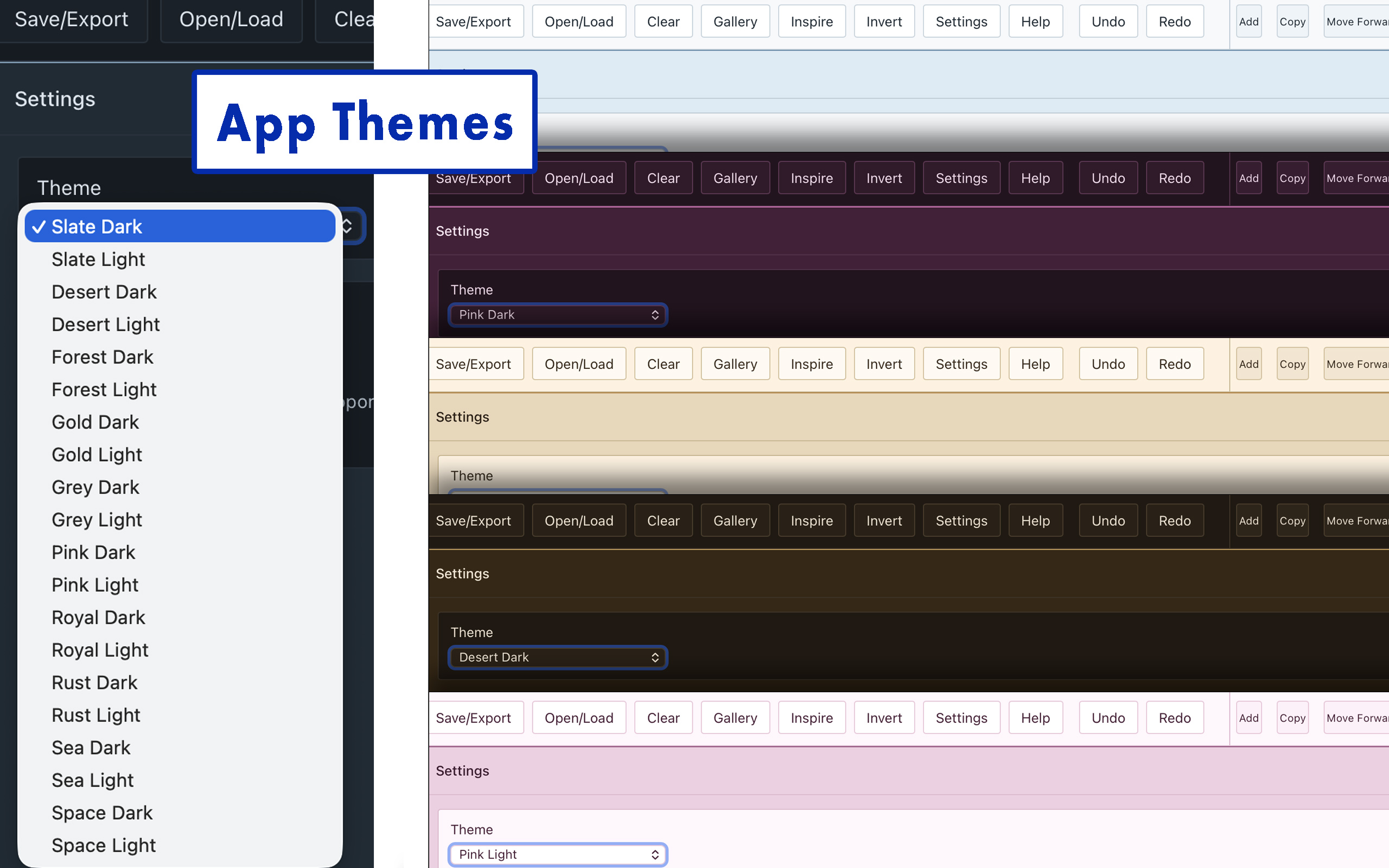
Twenty built-in themes — ten color palettes, each in a light and a dark version.
Switch the whole app's look from Settings at any time. The preview area also has its own light-to-dark background cycle and an optional grid, so you can check how a design reads against different backgrounds while you work — this doesn't affect your exported art.
Open the built-in gallery and load any design to see how its layers and settings fit together — a real, working project you can study or build on.
Not sure where to start? Inspire randomly places shapes and colors for you — a spark to react to, adjust, or abandon entirely.
While editing a layer, three small previews update instantly — the single shape, its full ring, and the whole artwork — so you always see where you're headed.
Your project autosaves after every change and reopens right where you left off. When you're ready to share or print, export in the format that fits:
SVG exports keep your layer groups intact for editing in Illustrator or Inkscape. PNG and JPG export as a square image with a white background, at a size you choose.