
Cattail.Nu Counter for iPod Touch® and iPhone®
About
Count anything - inventory, visitors, smoke breaks. Increments include a date/time stamp, so you can email yourself the data for analysis.
Count
|
Count with Date/Time
|
How to Use
|
Add an Item: Tap the + in the upper right. Enter details. Choose a photo (optional). Count (Tap Mode off): Tap on the item. Tap on the +1, +5, or +10 buttons. Count (Tap Mode on): Tap on the item to add 1. Delete an Item or Date/Time Entry: Slide finger across item. Tap the delete button. |
Toggle Sound or Tap Mode: Tap on the i in the upper left. Switch the slider. Reset Item Count to 0: Turn Tap Mode off. Tap on the item. Tap on the Clear Data button. Email Item Data: Turn Tap Mode off. Tap on the item. Tap on the Email Data button. |
Reset All Counts to 0: Tap on the i in the upper left. Tap on the Reset ALL Counts to 0 button. Email All Data: Tap on the i in the upper left. Tap on the Email ALL Data button. Delete All Data: Tap on the i in the upper left. Tap on the Delete ALL Data button. Count Limits: You can count as high as your device memory allows you to. Counts slow as the memory limit gets closer. (5000 - 10000) |
Screenshots
Main Screen (Tap Mode Off)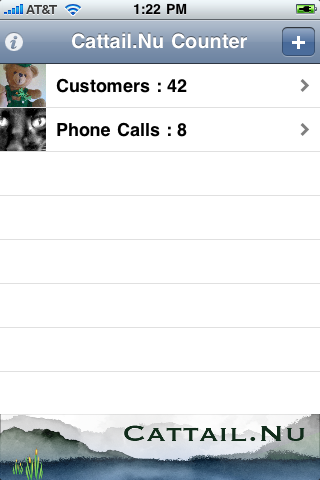
|
Detail Screen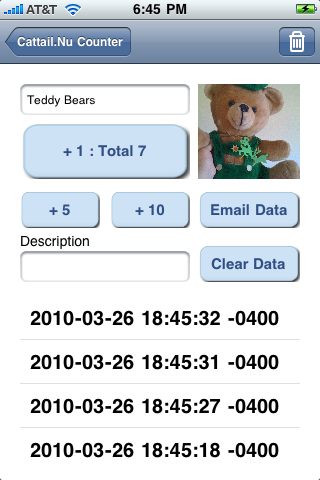
|
Information Screen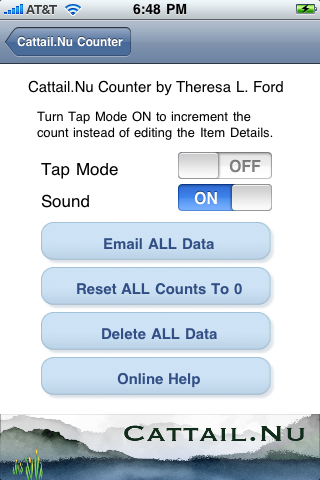
|
Main Screen (Tap Mode On)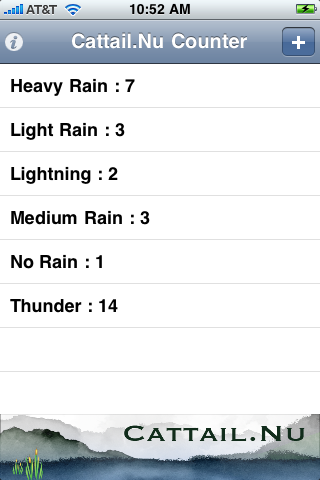
|
Data from left imageemailed from Cattail.Nu Counter and graphed (different program): 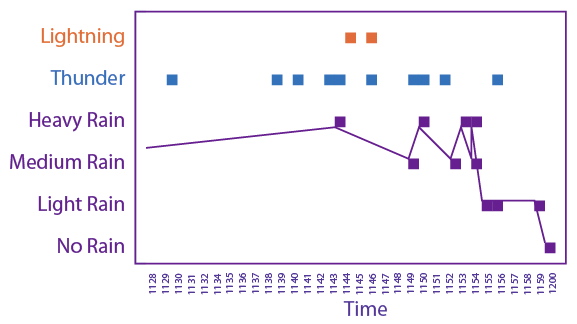
|
New Item Screen.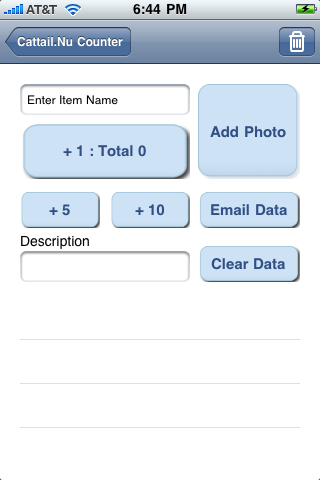
|
Main Screen (Tap Mode Off), showing display options.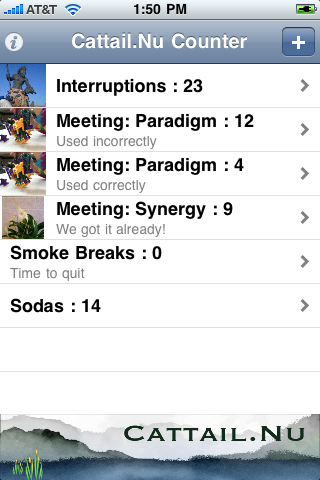
|
How To Buy
- Search the App Store for Cattail.Nu Counter
- Cattail.Nu Counter on the App Store
Support / Comments / Feature Requests
- Check out the Cattail.Nu Counter Forum.
Contact Me:
Updates:
- 2010-04-01: Approved and available at the App Store!
- 2010-03-27: Awaiting Review at the App Store. Welcome, Reviewers!
- 2010-03-22: Coming Soon!
Coffee Comment:
- 2010-03-22: I designed the Cattail.Nu Counter app specifically to be simple and functional. I wanted to track when our TV image was freezing to see if it was random or due to an electrical charge buildup (regular). It didn't happen often enough to justify paying attention to the clock each time it would freeze. I just wanted something I could mindlessly tap, not interrupting my focus on the show, that I could analyze later. Of course, the problem miraculously disappeared on its own long before this app ever got finished, but I thought up a bunch of other uses - see the Customer Comments.
Copyright
Apple, the Apple logo, iPod, iPod touch, and iTunes are all trademarks of Apple Inc., registered in the U.S. and other countries. iPhone is a trademark of Apple Inc. App Store is a service mark of Apple Inc.
Cattail.Nu is a trademark of Theresa L. Ford.
Cattail.Nu Counter Privacy Policy
Cattail.Nu Counter stores data locally on your device and does not share data outside of the email you can explicitly send. None of your information is collected by Cattail.Nu.